
Pass information between steps
Flows are useful because each step can use what the steps before it produced: a form answer, a new record's number, a formatted date. Here's how to pick that information, and the one rule that keeps it arriving.
- You will
- Use earlier results in a step, and add a step that tidies a date
- Time
- About 12 minutes
- You need
- The flow from Build your first flow, or any flow with two steps
01What each step hands on
When a step finishes, it hands on its results, called its outputs. The steps after it can use them.
A form hands on each answer. A Google Sheets step hands on which cells it filled. A Format Date step hands on the date in the format you chose, plus its parts: the day, month, year and day of the week.
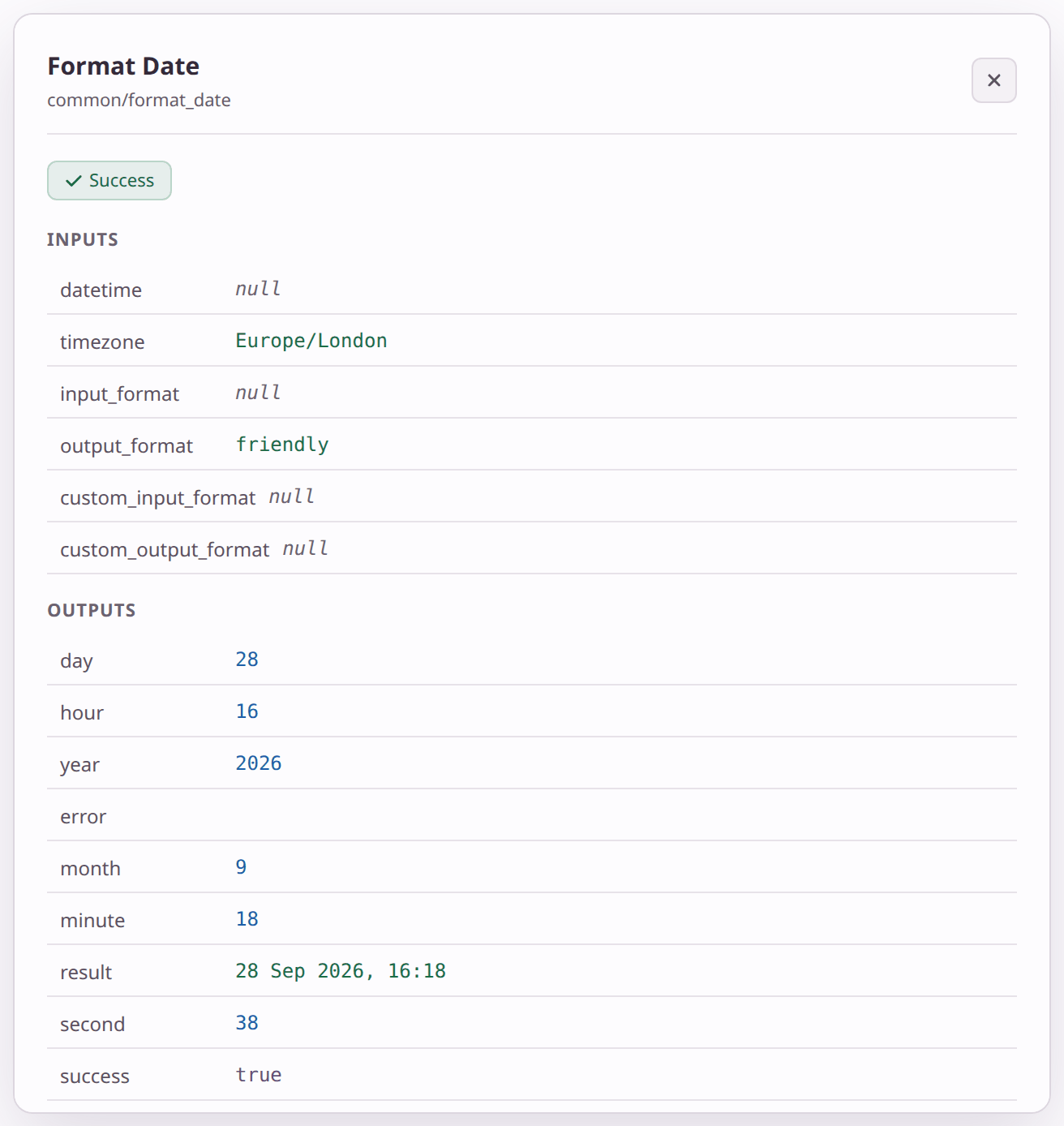
You can see every step's outputs by opening a run and clicking the step. That's the easiest way to find out what a step produces; see Check your runs.
02Pick a value with $
In any field, click the $ button, or type ${, and choose from the list.
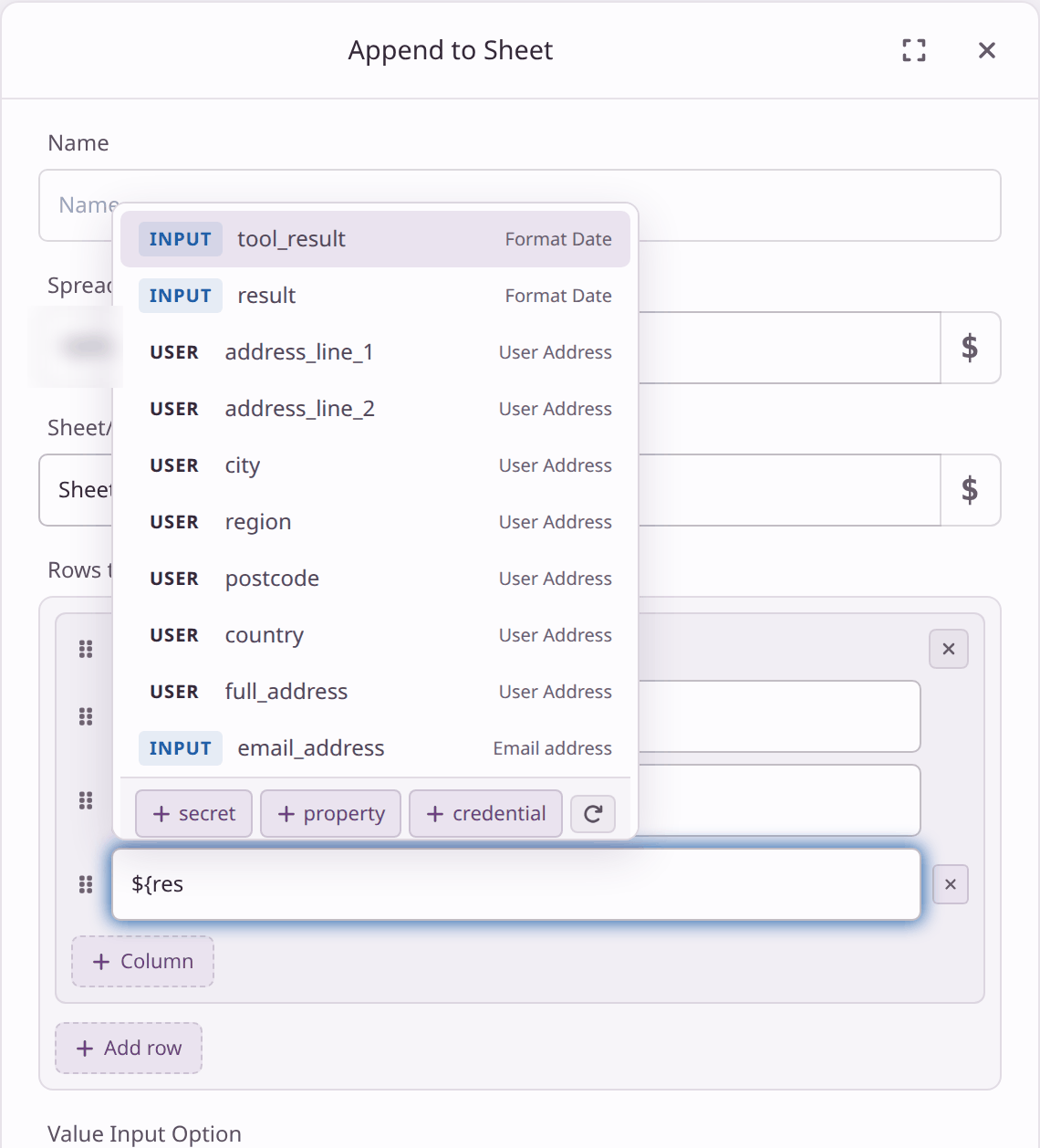
${ to narrow the list.Each row shows a label, the value's name, and where it comes from on the right:
| Label | What it is |
|---|---|
| INPUT | An output of the step connected directly before this one (its name is on the right), or an answer from your form |
| FLOW | Details of the run itself, such as start_time |
| USER | Profile details, such as a name and address; see below |
| SECRETS, CREDENTIALS | Keys and connected accounts from the flow's environment |
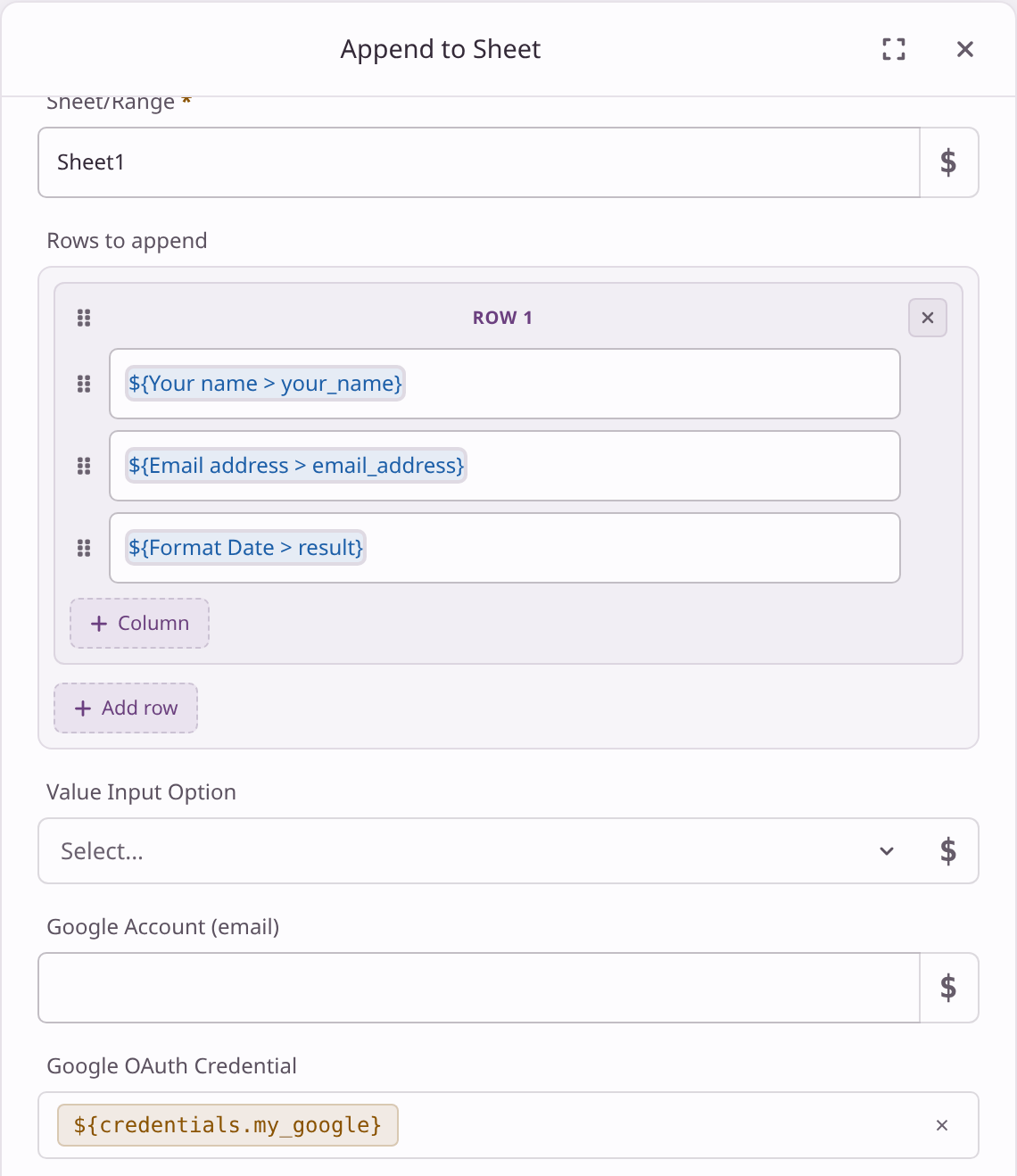
Once picked, the field shows where the value comes from, for example ${Format Date > result}: the result output of the Format Date step. When the flow runs, Flomation swaps it for the real value.
You can put values anywhere in a field, alongside ordinary text. For example, an email subject of Welcome, ${Your name > your_name}! becomes Welcome, Priya!
03Example: a friendly date
In your first flow, the Signed up column looks like 2026-09-28T14:38:19Z. Adding a Format Date step turns it into 28 Sep 2026, 16:18, in UK time.
-
Add a Format Date step
Click Add Node, search for format date and add it. Connect Form Trigger to Format Date, and Format Date to Append to Sheet. Keep the line that already runs from the form to the sheet step: it's what brings the form answers. See Answers from further back.
-
Set the format
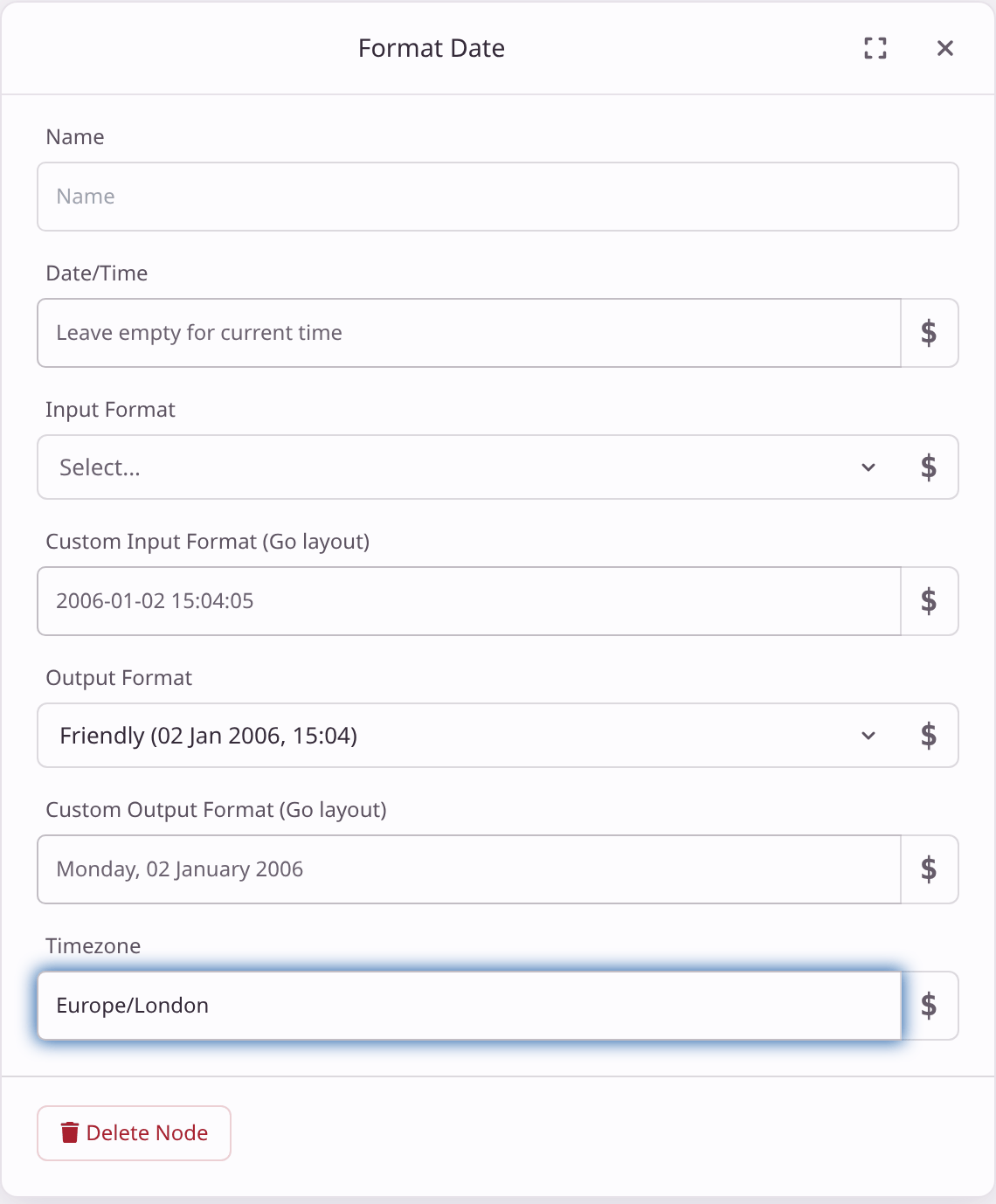
Click Format Date. Leave Date/Time empty, which means "now". Set Output Format to Friendly (02 Jan 2006, 15:04) and Timezone to Europe/London.
-
Use its result in the sheet
Click Append to Sheet. In the third cell of the row, clear what's there, type
${resand pick result (from Format Date).
04Answers from further back
After you add a step in the middle, the list still offers your_name and email_address, but they arrive blank unless the form is also connected directly to the step that uses them. Nothing warns you: the run says Success and the row is added with empty cells.
The fix is one extra line: connect the Form Trigger directly to Append to Sheet as well.
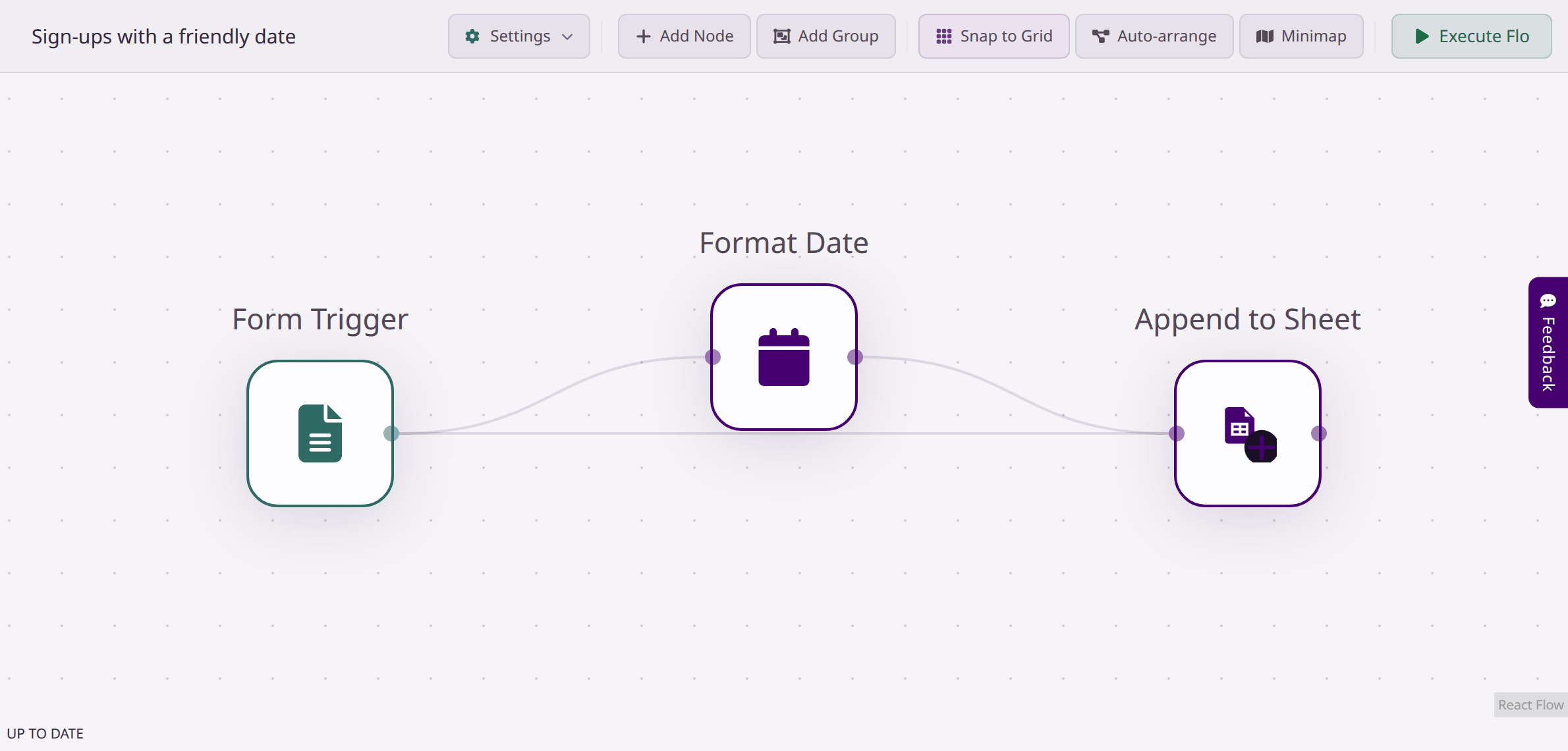
The sheet step still waits for Format Date, runs once, and gets both the answers and the date. Here's the run:
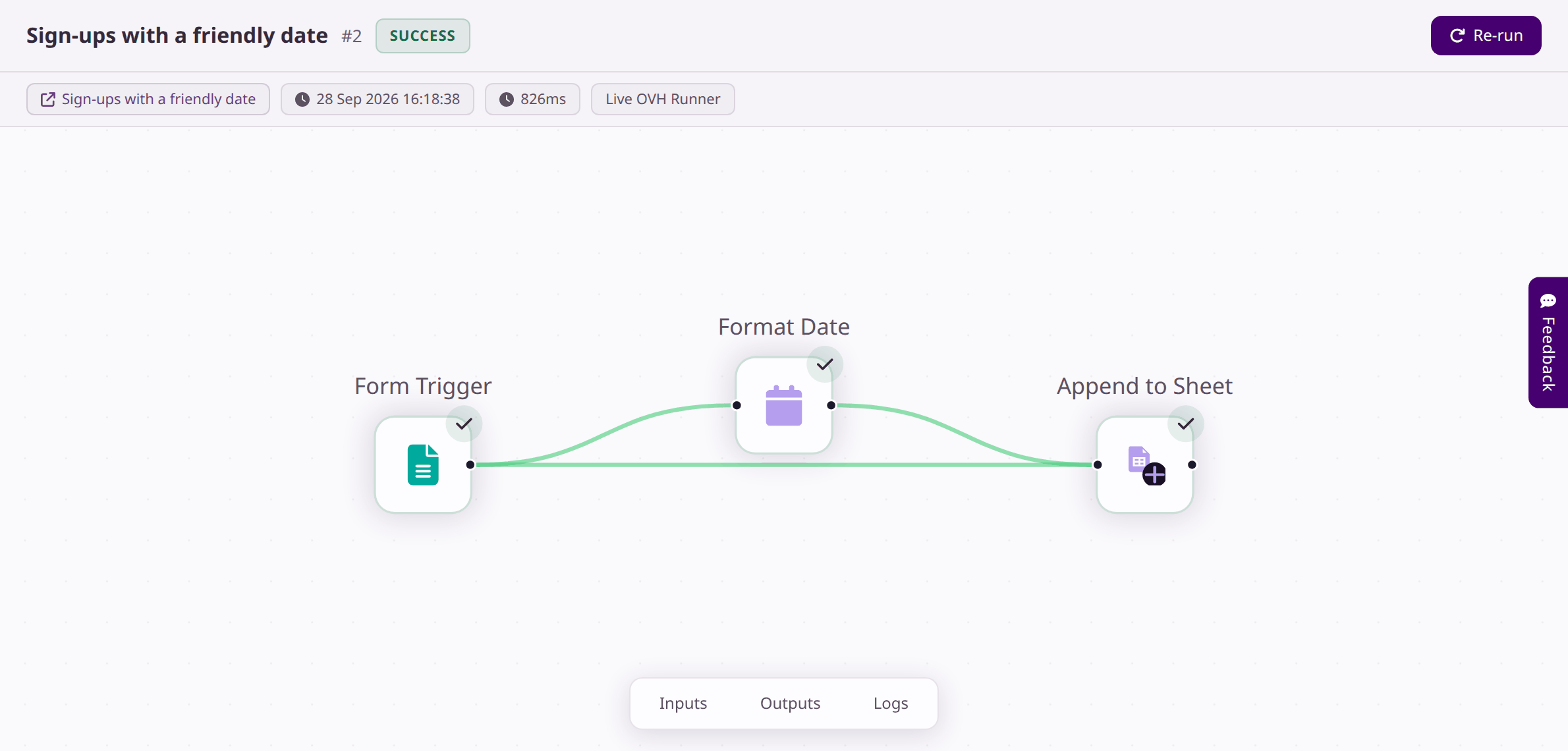
The general rule: the $ list offers the outputs of the step or steps connected directly before the one you're editing, plus your form's answers. If you need something from further back, connect that step directly too. Extra lines don't make a step run twice: each step runs once per run.
05Settings, secrets and run details
Some values don't come from a step at all.
| You want | Use | Looks like |
|---|---|---|
| A setting you use in many flows, like a spreadsheet ID or a channel name | A property in the flow's environment | ${env.signups_sheet} |
| A password or API key | A secret; see Connect your apps | ${secrets.stripe_key} |
| When the run started | FLOW start_time | ${flow.start_time} |
| A unique reference for this run | FLOW execution_id | ${flow.execution_id} |
| Your own name or address | USER values | ${user.first_name} |
To add a property without leaving the editor, click + property at the bottom of the list. The environment opens in a new tab. Add it there, come back and click the refresh button next to it.
When a public form, a schedule or a web address starts a run, the USER values are the profile of the flow's owner. For the details of whoever filled in your form, use the form's own answers.
06Check what arrived
If a value comes out blank or wrong, open the run and click the step that used it. Its Inputs show exactly what it received after Flomation filled in the values.
- Blank where you expected a value? Usually the step that produces it isn't connected directly to this one. See Answers from further back.
- A field is red, or the run won't start? It refers to something that doesn't exist, such as a secret or property that isn't in the flow's environment. Hover over the warning icon on the step for details.
- Not sure what a step produces? Run the flow once and look at the step's Outputs.
07Next steps
Last checked against the app on .