
Check your runs and fix failures
Every time a flow runs, Flomation keeps a record of exactly what happened. Here's how to read it, find the step that went wrong, put it right, and hear about problems without having to look.
- You will
- Find a failed step, read its error and fix it
- Time
- About 10 minutes
- You need
- A flow that has run at least once, such as the one from Build your first flow
01Find your runs
Find it: Automate›Executions
Each time a flow runs, Flomation adds a row to Executions. A run is also called an execution.
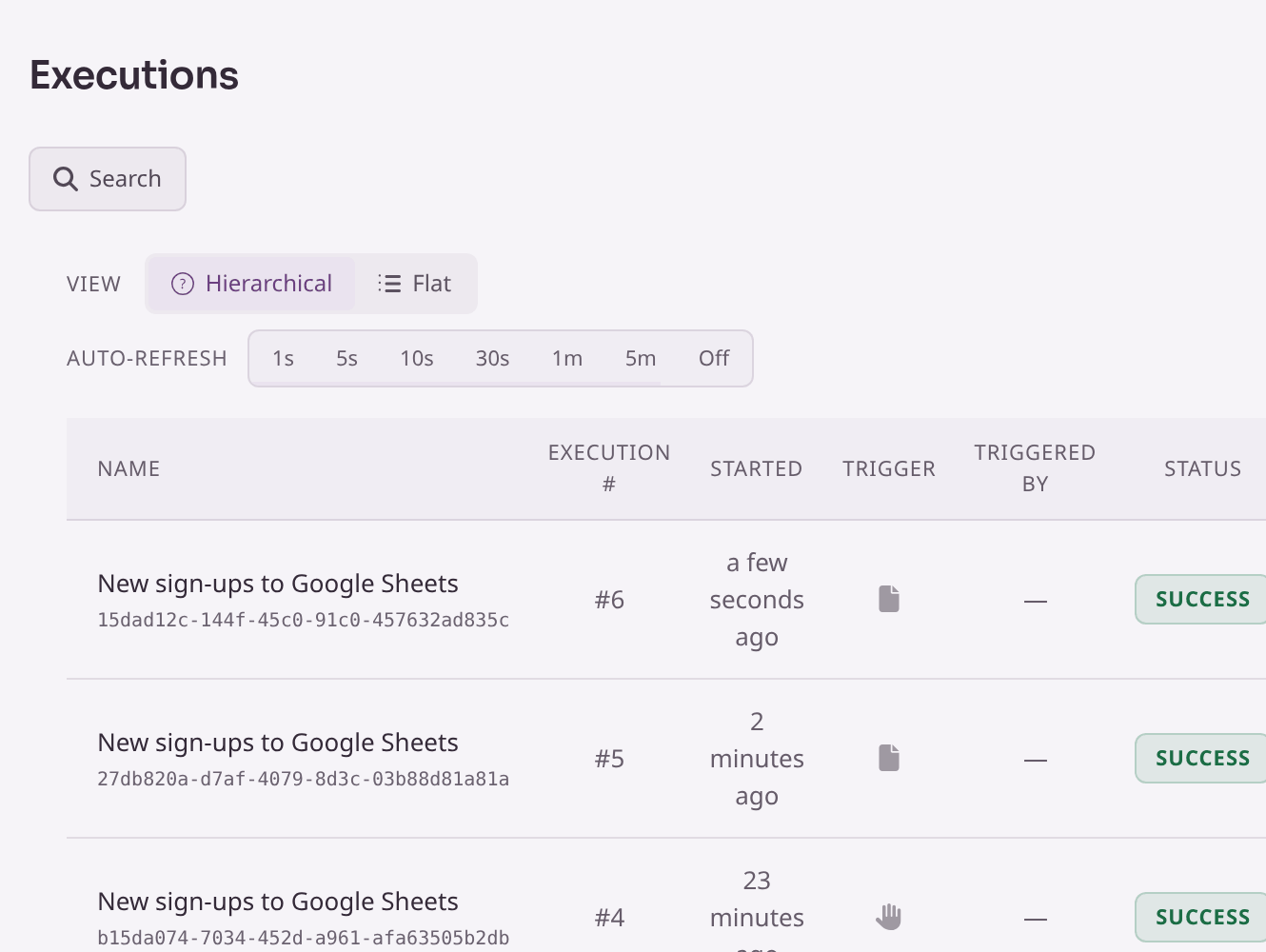
Each row shows the flow's name, the run number, when it started, what started it, its status and how long it took. A few controls help when the list gets long:
- Search finds runs by flow name.
- Auto-refresh keeps the list up to date while you watch, from every second to every five minutes, or Off.
- View opens a run.
02Read a run
Opening a run shows your flow exactly as it ran, step by step.
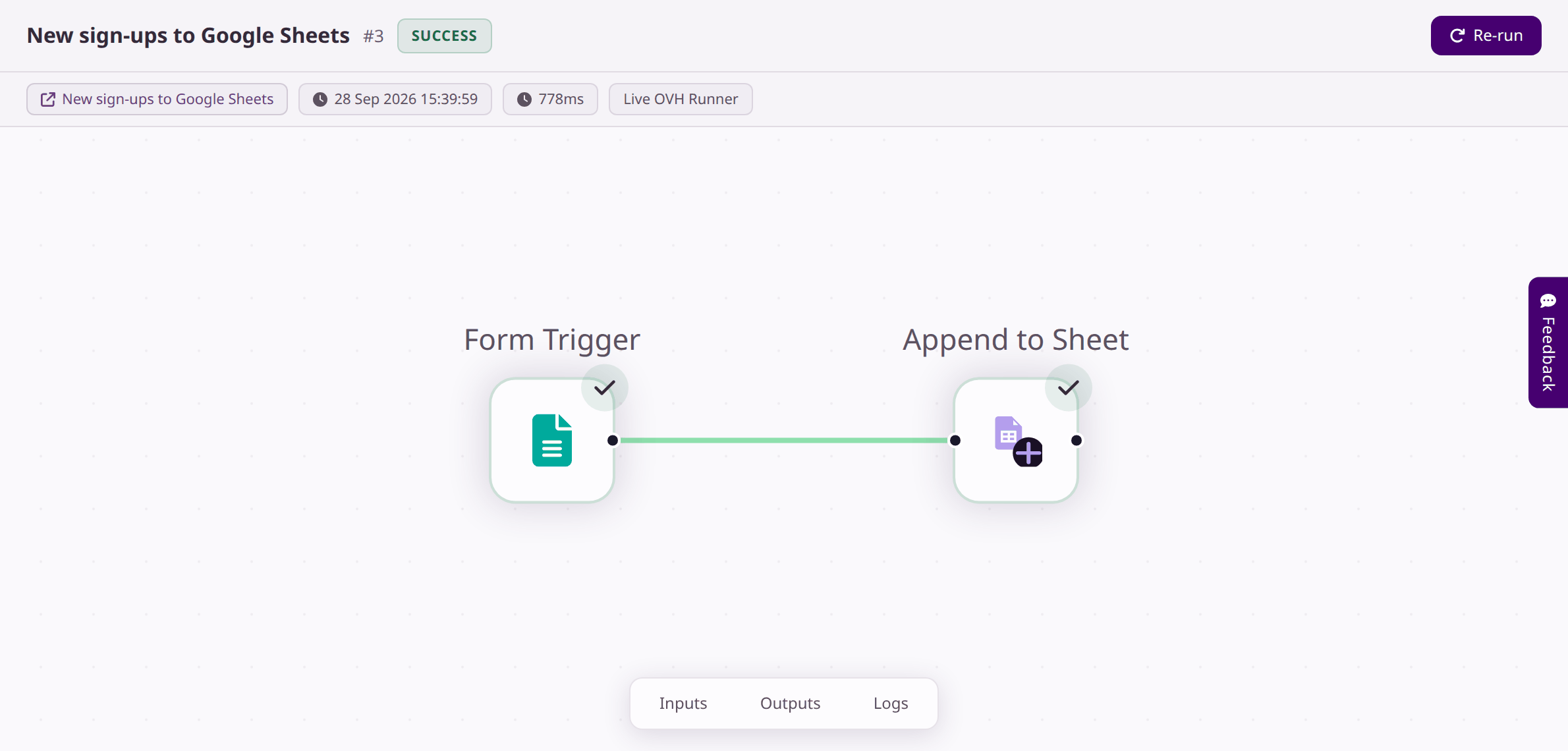
- Along the top are the run number, its status, when it started and how long it took. The flow's name is a link back to the editor.
- On each step, a tick means it worked and a cross means it didn't. Paths the flow didn't take are greyed out.
- Click any step to see what went into it (Inputs) and what it produced (Outputs). This is the quickest way to answer "what did it actually do?"
- Inputs, Outputs and Logs at the bottom show the data the run started with, the flow's final results, and a technical log.
03What the status means
| Status | What it means |
|---|---|
| Queued | Waiting to start |
| Allocated | Picked up and about to start |
| Running | In progress |
| Suspended | Paused until someone resumes it; open the run and click Resume |
| Success | The run finished. Check the steps too; see the next section. |
| Failed | The run stopped because a step went wrong |
| Cancelled | Stopped by someone before it finished |
04Spot a failed step
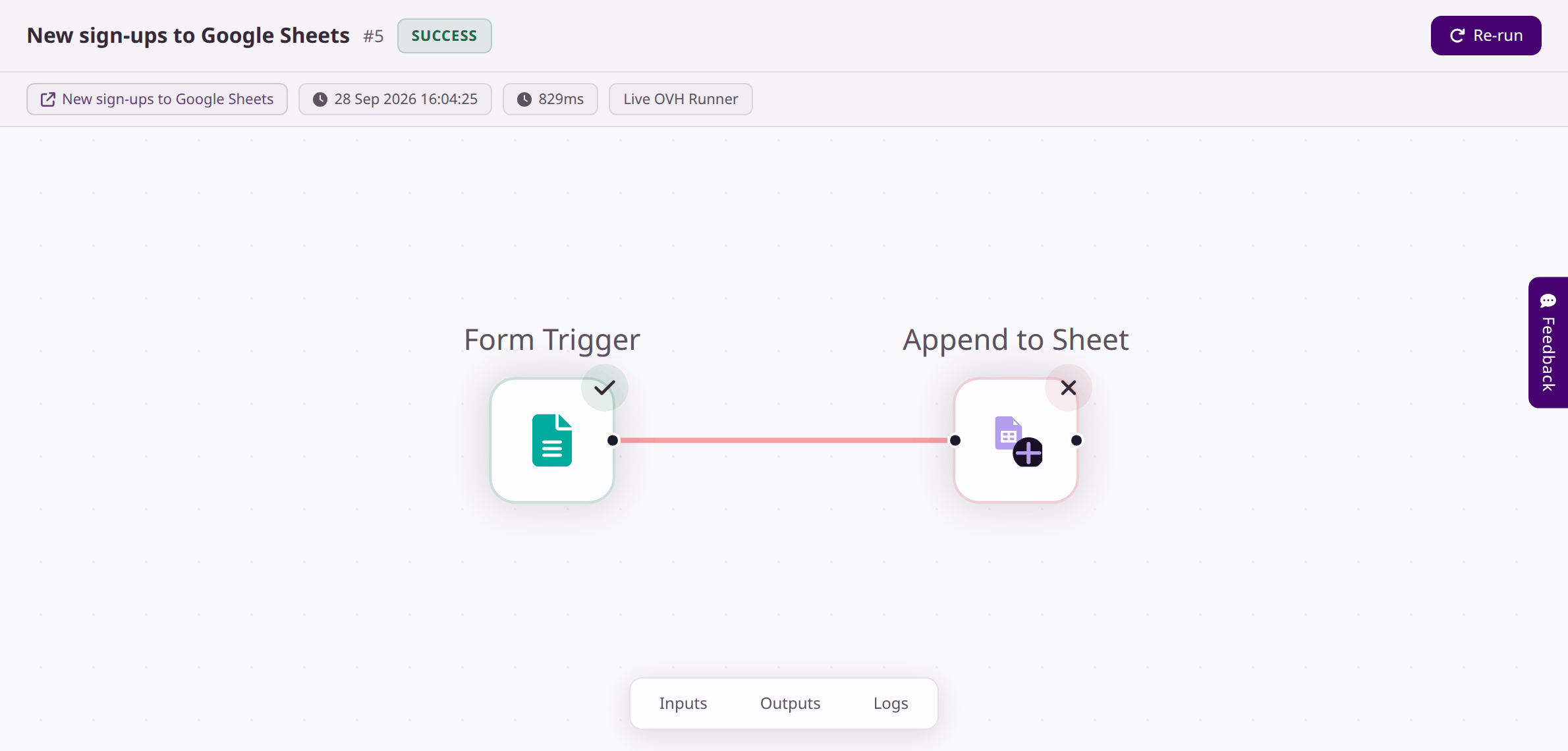
Some steps, including Google Sheets, report a problem without stopping the flow. The run carries on to the end and is marked Success, but the step that went wrong shows a red cross. Always look at the steps, not just the status.
Here's a real example. The sheet step's Sheet/Range was changed to Sheet 1, with a space, but the tab is called Sheet1. Someone then filled in the form:
05Read the error
Click the step with the red cross. Its details open with a Failed label and an Error box explaining what went wrong.
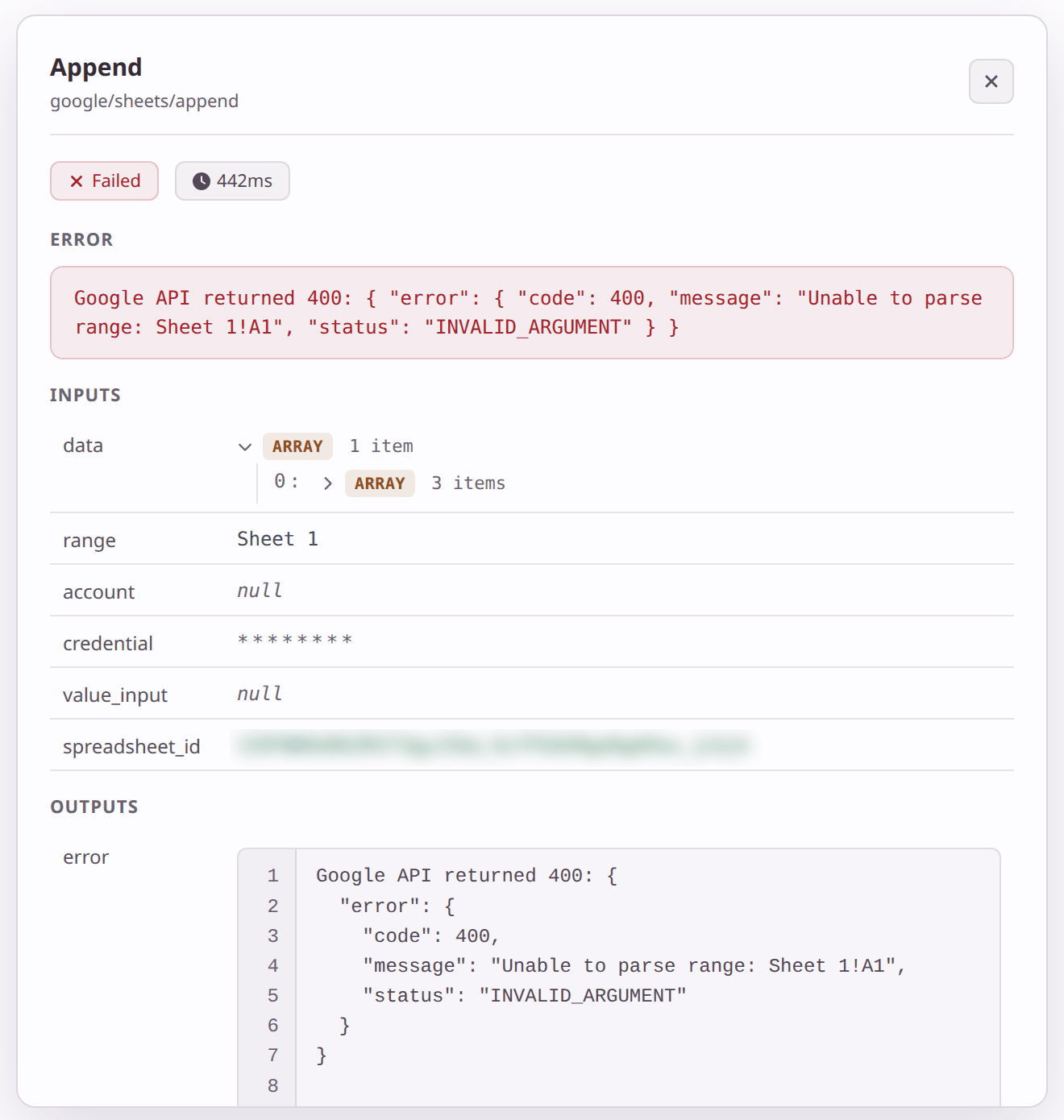
Errors from other apps can look technical, but they usually tell you exactly what's wrong. Here, Unable to parse range: Sheet 1!A1 means Google couldn't find a tab called Sheet 1. The Inputs underneath confirm the step used Sheet 1.
Most errors from apps include a number. It points you to the kind of problem:
| Number | Usually means | What to check |
|---|---|---|
| 400 | The app didn't understand a setting | Spelling and format of the step's fields, like the tab name above |
| 401 or 403 | Not allowed | The connection is Active and has the access it needs; if not, reconnect it |
| 404 | Couldn't find it | IDs and names, and that the connected account can open the file or record |
| 429 | Too many requests | Wait a little and try again |
| 500 and up | The other app is having trouble | Try again later |
06Fix it and try again
-
Open the flow
Click the flow's name at the top of the run to jump to the editor.
-
Correct the setting
Click the step and fix the field. In the example, change Sheet/Range back to Sheet1. The editor saves as you go.
-
Run it again the same way
Start the flow the way it normally starts. For a form flow, submit the form again, or ask the person to. Then check the new run has ticks all the way through.
A finished run has a Re-run button. It starts the flow again from the beginning, but without the answers or data from the original run. That's fine for flows that don't depend on incoming data, like a scheduled report. For a form flow it would add a blank row, so resubmit the form instead.
07Get told when a run fails
Find it: in the editor, Settings›Notifications
You don't have to keep checking. Flomation can email you when a run finishes.
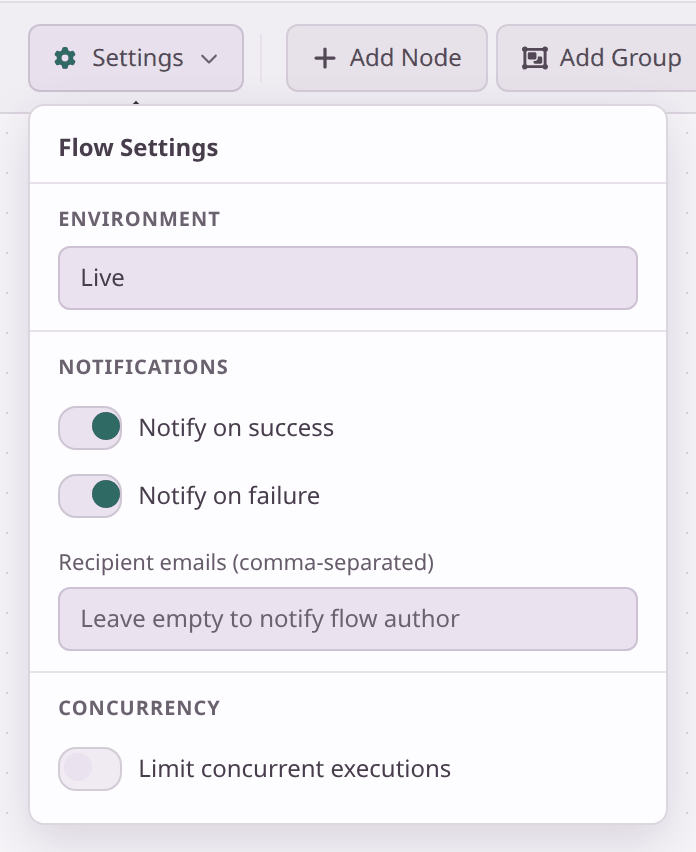
- Notify on success and Notify on failure are both on for new flows. Turn off Notify on success once a flow is working, so you only hear about problems.
- Recipient emails: leave it empty to email yourself, or list other people's addresses separated by commas.
The failure email is sent when the run as a whole fails. A step that fails inside a run marked Success, like the example above, won't trigger it. For flows that matter, glance at your runs regularly.
08Runs and your usage
The time each run takes counts towards your plan's monthly allowance of execution minutes. Most simple flows take well under a second. The Usage card on your Dashboard shows how much you've used this month, and Billing has the details.
09Next steps
Last checked against the app on .