
Connect your apps
Most flows work with other apps: a spreadsheet, a chat tool, a CRM. Here's how to connect them safely, either by signing in or by storing a key, and how to keep those connections working.
- You will
- Connect an app by signing in, and store an API key as a secret
- Time
- About 10 minutes
- You need
- An account with the app you want to connect
01Two ways to connect
Depending on the app, you connect it by signing in or by copying an API key from it.
| Sign in (a credential) | API key (a secret) | |
|---|---|---|
| How it works | You sign in on the app's own page and approve access | You copy a key or token from the app and paste it into Flomation once |
| For example | Google, Microsoft, GitHub, LinkedIn, Facebook | Slack, Stripe, Airtable, Notion, HubSpot, OpenAI, Anthropic |
| Stored as | A credential | A secret |
| Kept fresh | Flomation renews it for you | Lasts until you or the app change the key |
Not sure which an app needs? Add its step and look at the connection field. Choose a credential… means sign in. Choose a credential or secret… usually means an API key.
02Where connections live
Find it: Configure›Environments
Every connection belongs to an environment. Credentials go on its Credentials tab, and API keys on its Secrets tab.
A flow uses the connections in whichever environment it's set to, under Settings›Environment in the editor. So connect the app in the same environment your flow uses. If you don't have an environment yet, click Create Environment and give it a name such as Live.
03Connect by signing in
-
Open the Credentials tab
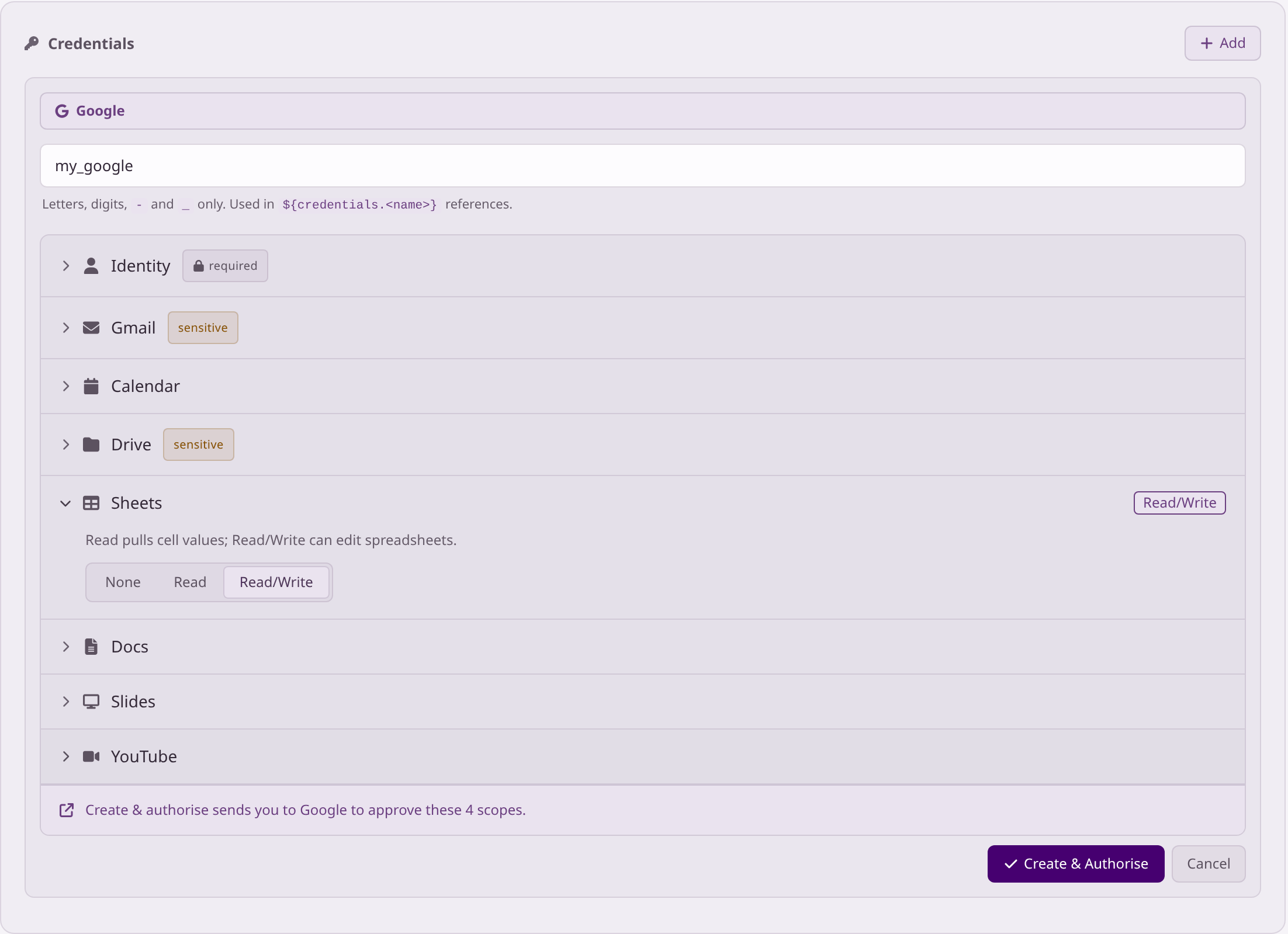
Open your environment, choose the Credentials tab and click Add. Pick the app from the list.
-
Name it
The name is how you'll pick it in your flows, so make it clear:
sales_googleis better thangoogle2. Use letters, numbers, hyphens and underscores. -
Choose what it can do
Some apps, including Google and Microsoft, let you choose which parts Flomation may use, such as Read or Read/Write for Sheets. Only give the access your flows need. Parts marked sensitive, like Gmail and Drive, can see private data.
-
Sign in and approve
Click Create & Authorise. The app's sign-in page opens in a pop-up. Sign in and allow access, and you'll see Authorised Successfully. Close the pop-up and reload the page: the credential should show Active.
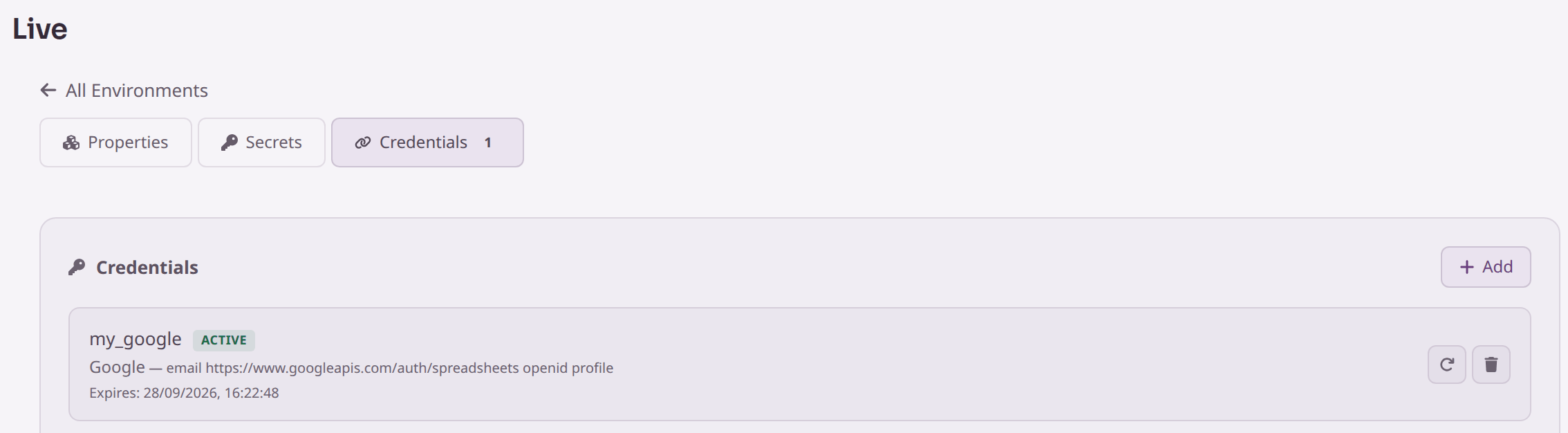
That's fine. Add a credential for each, with names that tell them apart, such as sales_google and support_google. Each step uses whichever one you pick.
04Store an API key as a secret
For apps that give you a key instead of a sign-in page, save the key as a secret. Flomation encrypts it and only uses it while a flow runs.
-
Get the key from the app
Each app has its own place for this, usually in its settings under API, Integrations or Developer. Flomation's field hints show what the key looks like: a Slack bot token starts
xoxb-, and a Stripe key startssk_live_orsk_test_. -
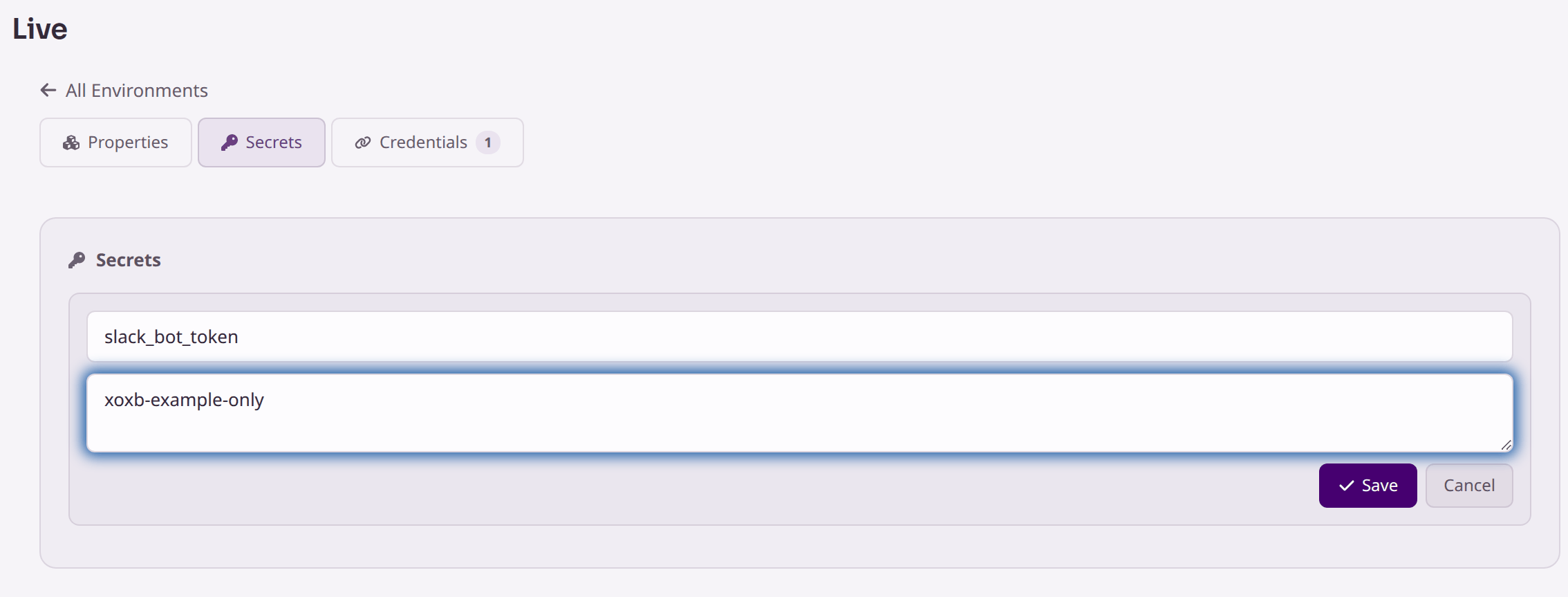
Add a secret
In your environment, open the Secrets tab and click Add. Give it a name, such as
slack_bot_token, paste the key into Value (will be encrypted), and click Save.
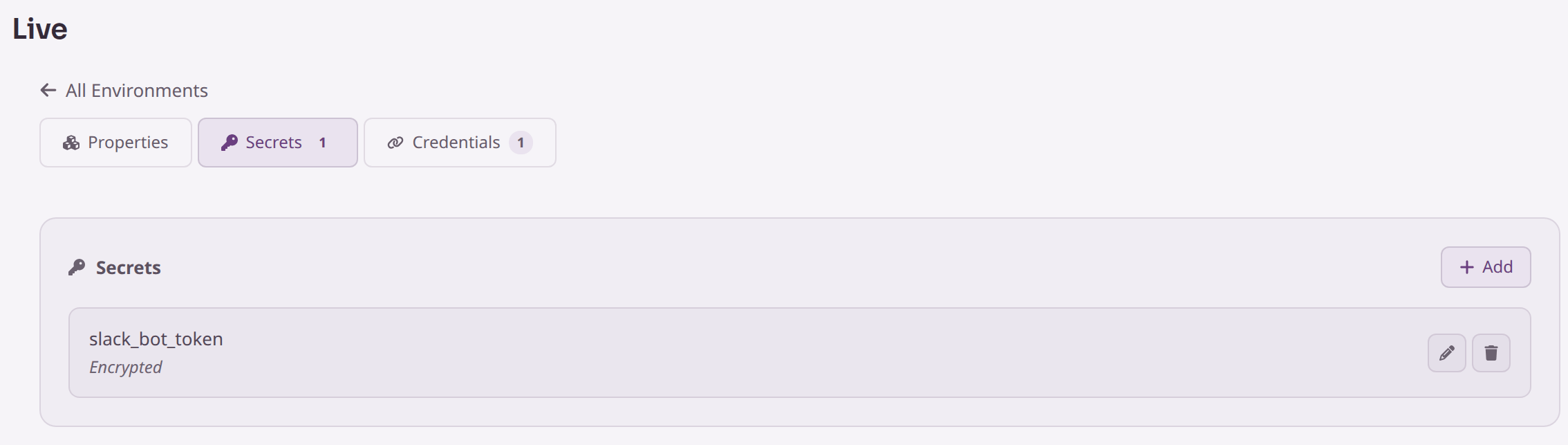
That's deliberate. To change it, for example when the app gives you a new key, click the pencil and paste the new value. To rename a secret, delete it and add it again with the new name.
Keys typed into a step's fields could be seen by anyone who can open the flow. If a field looks like it has a key in it, Flomation won't run the flow until you move it into a secret.
05Use a connection in a step
In the step's settings, click the connection field and pick your credential or secret from the list.
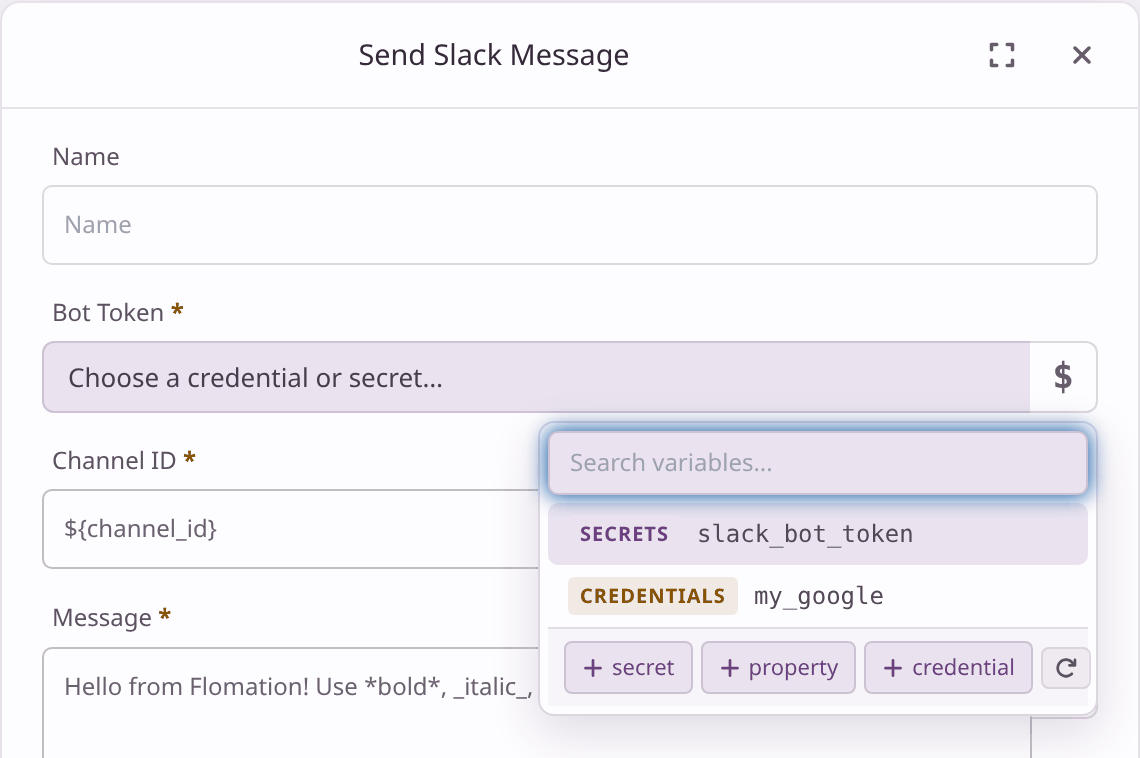
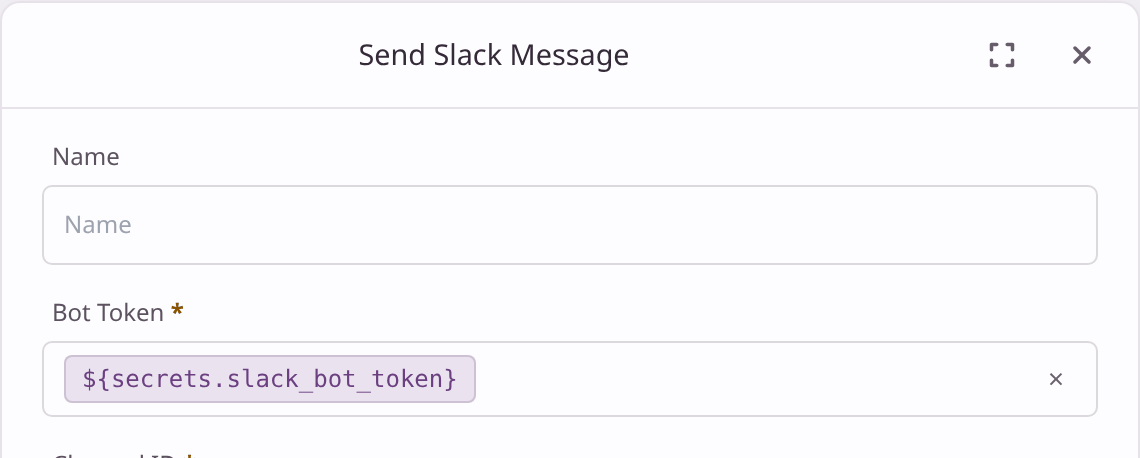
- The list shows everything in the flow's environment, not just this app's connections, so clear names really help.
- Not listed yet? Use + secret or + credential at the bottom of the list. The environment opens in a new tab; add it there, come back and click the refresh button.
- A red chip means the connection it points to no longer exists in the environment.
06"Bring your own app"
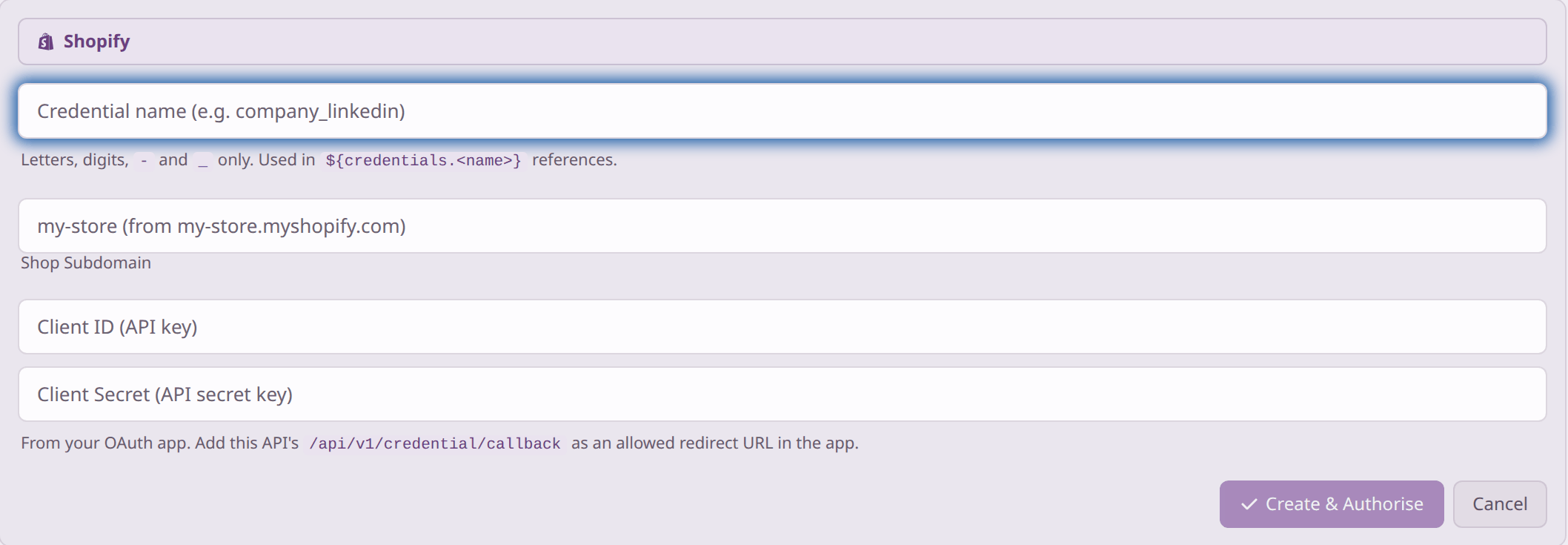
Some apps in the list are labelled Bring your own app, for example Salesforce, Shopify and Calendly. Before anyone can connect them, you need to register Flomation with that app yourself.
-
Register an app with the other service
In the other app's developer settings, create an app (sometimes called an OAuth app or API client). This usually needs someone with admin access to that app.
-
Allow Flomation's return address
Add this as an allowed redirect URL:
https://api.flomation.app/api/v1/credential/callback-
Copy the Client ID and Client Secret into Flomation
The app gives you these when you register it. Paste them into Client ID (API key) and Client Secret (API secret key), fill in anything else the form asks for, then click Create & Authorise as usual.
Oracle Cloud connects through a short guided setup in your Oracle tenancy instead. Follow Connect Oracle Cloud.
07Keep connections working
Flomation renews signed-in connections in the background, so normally there's nothing to do. The label next to a credential tells you if something needs attention.
| Label | What it means | What to do |
|---|---|---|
| Pending | Signing in hasn't finished | Reload the page. If it's still Pending, click the circular arrow and sign in again |
| Active | Working | Nothing |
| Error | Flomation couldn't renew it; the reason is shown underneath | Click the circular arrow (Re-authorise) and sign in again |
| Revoked | The app no longer accepts it, for example because access was removed there | Re-authorise, or check the account still exists and has access |
Only Active credentials work when a flow runs. While you re-authorise, the credential goes back to Pending, so flows using it stop working until you finish signing in.
The time under a credential is when its current access pass runs out. Flomation swaps it for a new one shortly before then, so you can ignore it unless the credential shows an error.
Deleting a connection
Deleting a credential or secret can't be undone, and every flow that uses it stops working. If you add a new one with exactly the same name, those flows pick it up again. Deleting a credential in Flomation doesn't remove Flomation's access inside the other app, so remove it there too if you no longer want it.
08Connections and your team
In an organisation, environments are shared: everyone in the organisation can see its environments and use the connections in them in their flows. Changing secrets and properties needs the Manage Environments permission, which admins can give through teams.
Connect shared tools with a team or service account rather than your personal login. Then flows keep working when someone is on holiday or leaves.
09Next steps
Last checked against the app on .